For practices

The practice bridge: jobs from the PMS, your own forms and reception by QR code.

The bridge runs on your practice Mac or Windows PC. It takes signing jobs via GDT from your practice system and straight from the computer. With the form editor you build your own forms – and at reception your team starts forms by QR code that patients fill in on their own phone. The doctor signs on the phone with PIN and eHBA.

Join the betaThe bridge is in closed beta. Once you are approved, we send you the download.
1Jobs from the PMSVia GDT from your practice system, signed back into the record.2Straight from the computerFrom the print dialog, Finder or by drag & drop to the phone.3Form editorYour own forms as PDFs, answers into the PMS via GDT.4Reception with QRPatients fill in on their own phone – no app.
Main feature From the PMS

Jobs from the PMS.

Your practice system puts the job into the export folder via GDT. The bridge takes the document to the doctor’s phone. After signing, the signed PDF and the GDT reply are in the import folder, and the PDF lands in the patient record.
1. Job from the PMS
Your practice system puts the job (GDT record type 6301) with the PDF into the export folder, for example a doctor’s letter, a finding or a form.
2. Sign on the phone
The job shows up in the app of the doctor it is meant for. Signing is done with PIN and eHBA, qualified under eIDAS.
3. Back into the record
The bridge puts the signed PDF and the GDT reply (record type 6302) into the import folder: with patient number and name from the job and the path to the PDF. Your practice system files it with the patient.
Practice bridge
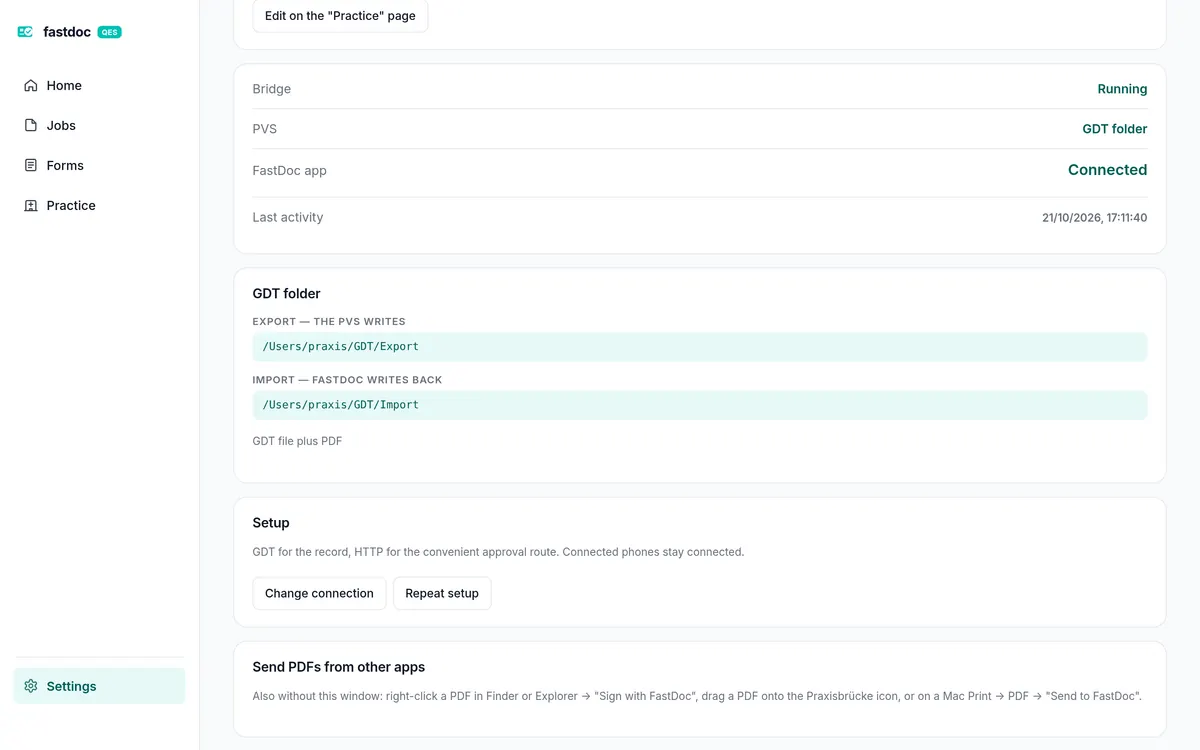
Settings of the practice bridge with the GDT folders (sample data)
GDT and settingsExport and import folders of your practice system, the connection status and the paired phones.
GDT reply · record type 6302
80006302record type: reply to the PMS
30004711patient number from the job
3101Beispielname from the job
8402Qualifizierte Signatur FastDocfinding
6305…/Import/Letter_4711.pdfthe signed PDF
What goes back to the practice systemExcerpt of the GDT reply next to the signed PDF in the import folder. Made-up sample data.
Main feature Straight from the computer

Straight from the computer to the phone.

A PDF does not have to go through the practice system first. Any PDF on the practice PC can go to the phone for signing, even without a PMS. The bridge takes it from wherever you are working.

From the print dialog
On a Mac in any program: Print → PDF → “An FastDoc senden”.
From Finder and Explorer
Right-click a PDF → “Mit FastDoc signieren”. On Windows also “Send to”.
By drag & drop
Drag a PDF or mail attachment onto the bridge icon in the menu bar.
In the bridge’s own interface
“Send a PDF to the phone” on the start page: choose or drop a file, pick the doctor. The page runs locally in the browser at 127.0.0.1:8765.
Mac
  • Right-click in Finder: quick action “Mit FastDoc signieren”
  • In the print dialog: PDF → “An FastDoc senden”
  • “Open With” → Praxisbrücke
  • Drag a PDF onto the bridge icon in the menu bar
Windows
  • Right-click a PDF in Explorer: “Sign with FastDoc”
  • “Send to” → “FastDoc (sign)”
Arrives with the next Windows package of the beta.
Screenshot to followMac print dialog: “An FastDoc senden”
Screenshot to followRight-click in Finder: “Mit FastDoc signieren”
Back on the computer
  • The signed PDF then sits next to the original as “name_signiert.pdf”.
  • Files without a fixed folder (printing, mail, the interface) go to “Documents/FastDoc Signiert”.
  • No file is ever overwritten. With several paired phones you pick the doctor first, and the choice can be remembered.
Form editor

From form to field in the record.

Build a form in the Praxisbrücke, use it as a web form or PDF – answers go via GDT straight into the patient record.
0:00 / 0:00
Build a form in the Praxisbrücke, use it as a web form or PDF – answers go via GDT into the patient record. Closing: QR at reception.
Main feature Form editor

Your forms. Your fields. Straight into your PMS.

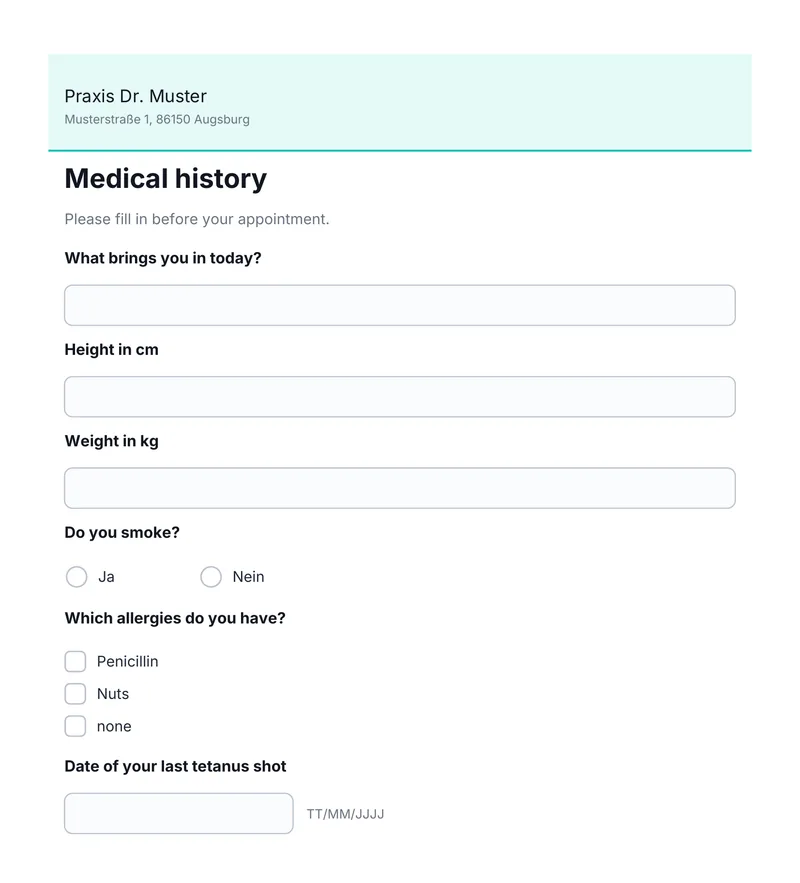
Design medical history, information and consent forms yourself as PDFs, with no programming and no digitisation service. Every answer can be linked to a GDT field ID. After signing, the answers arrive in your practice software as structured data, and the PDF goes into the patient record.
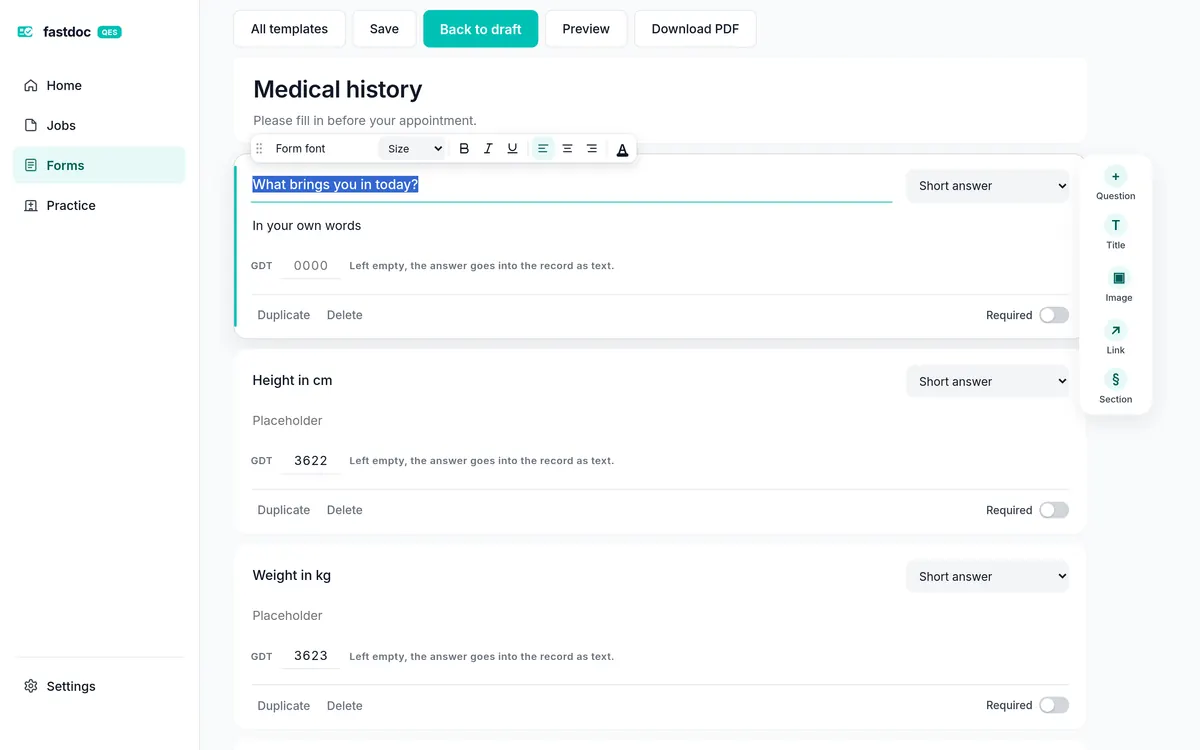
Practice bridge
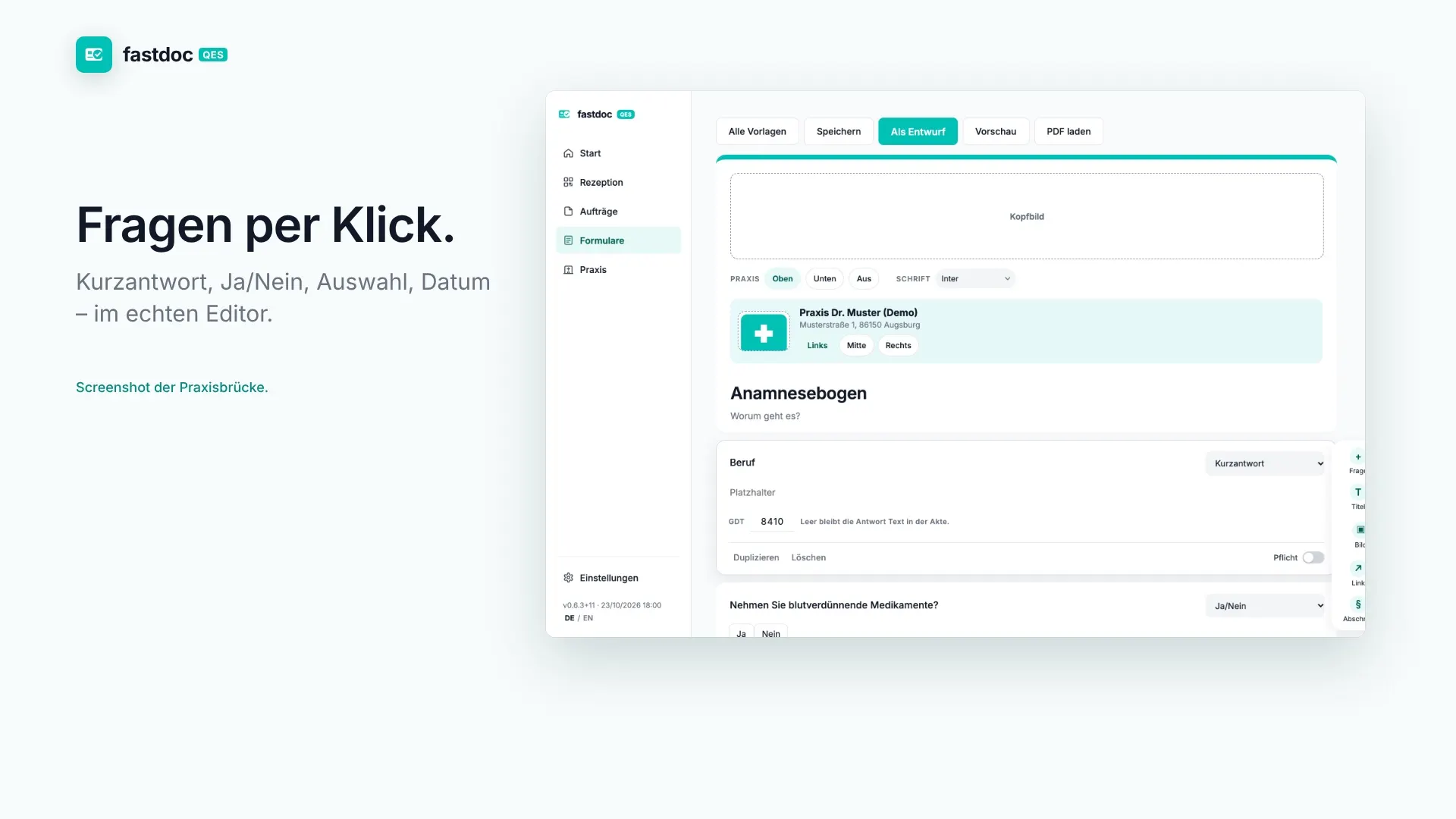
Form editor of the practice bridge with the medical history form of a sample practice
The form editorQuestions as short answer, yes/no, single or multiple choice, date, time, scale or grid. With logo, header image, font and accent colour. Bold, italic or underlined text, in size, alignment and colour.
Fillable medical history PDF created by the practice bridge (sample practice)
The finished PDFA fillable PDF that can be filled in with Acrobat, Preview or a browser.
Built yourself instead of costly digitisation.
Change your forms at any time, with no charge per page.
Answers, not just documents.
No retyping, no double entry.
Qualified signature.
The doctor signs the completed form with their eHBA as a qualified electronic signature (QES), the highest level under eIDAS.
No tablet, no cloud form platform.
Runs on Mac and Windows.

With other providers, the questionnaire editor is often an add-on module, or you pay per digitised page. In the practice bridge it is included.

Good to know
  • No form software and no agency: the templates stay in your practice, as files in the bridge folder.
  • €, quotation marks and umlauts come out right in the PDF.
  • The fonts are embedded in the PDF. Nothing is loaded from the internet when it opens.

Every answer in the right field of the record

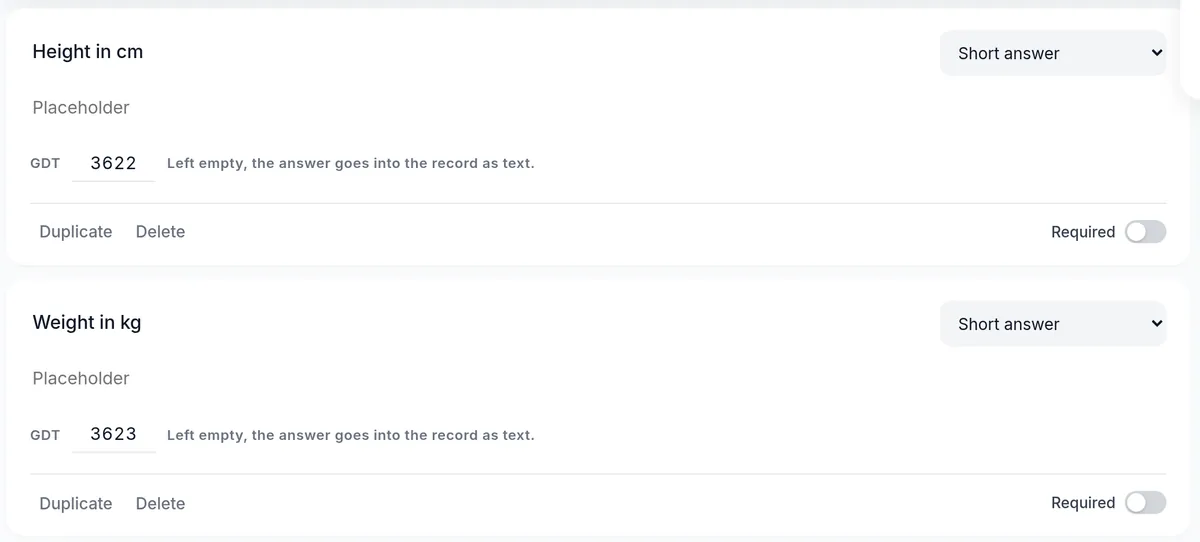
Every question on a form has a box for a four-digit GDT field ID. After signing, the answers then come back not only as a PDF but as data in your practice system. Left empty, the answer goes into the record as a line of text.
Practice bridge
Two questions in the form editor linked to GDT fields 3622 and 3623 (example)
Link a question to a GDT numberIn the example, height goes to field 3622 and weight to field 3623. Left empty, the answer goes into the record as a line of text.
GDT reply · record type 6302
80006302record type: reply to the PMS
30004711patient number from the job
3101Beispielname from the job
8402Qualifizierte Signatur FastDocfinding
3622172height → field 3622
362368weight → field 3623
6228Do you smoke?: Noevery answer as a line
6228Which allergies do you have?: Penicillin, Nutsmultiple choice on one line
6305…/Import/Medical_history_4711.pdfthe signed PDF
What goes back to the practice systemExcerpt of the GDT reply the bridge puts next to the signed PDF in the import folder. Made-up sample data.
New in the beta

Reception: forms by QR code on the patient’s own phone.

At reception you start a form – with one click from the practice system or as a tile in the practice bridge. A QR code appears on a second screen. The patient scans it with their own phone and fills in the form in the browser. No app needs to be installed.

  • Answers come back to the practice encrypted. The server only ever sees scrambled data.
  • Jobs from the PMS return to the record automatically after the patient submits.
  • Forms started from a tile land under “Assign”. Reception enters the patient number – then they go into the PMS.
  • With a signature field, it becomes a job to sign together on the doctor’s phone. The doctor confirms identity with their QES.
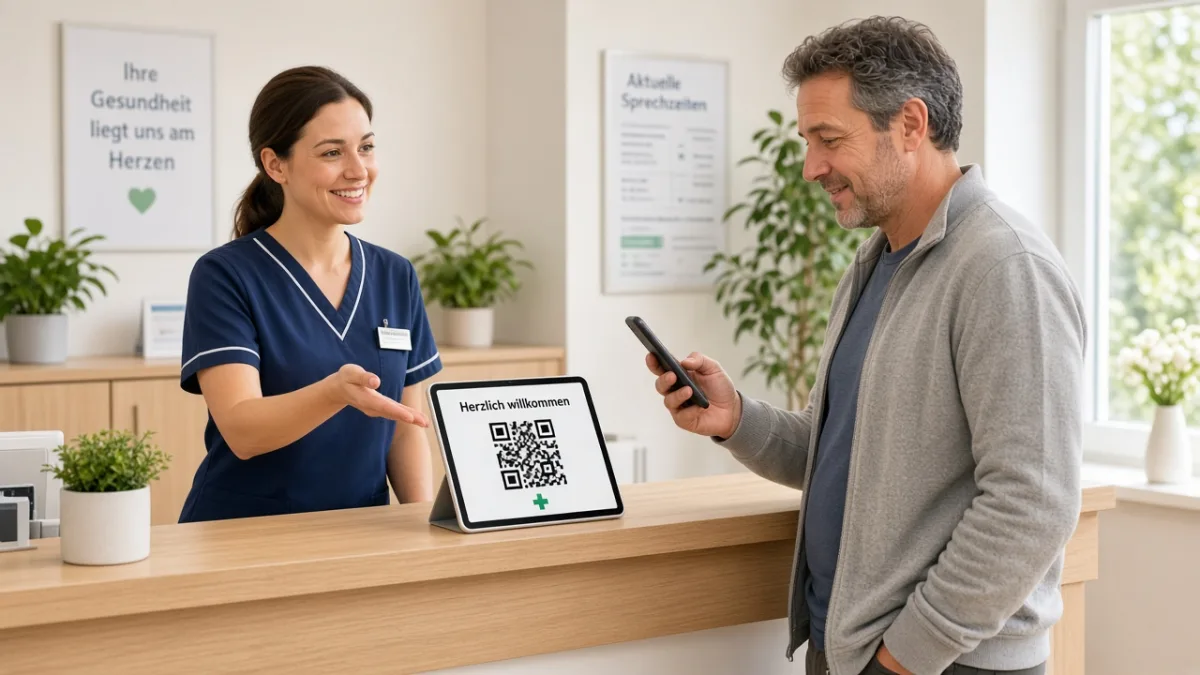
Bright practice reception: medical assistant pointing a patient to the QR code to fill the form on their own phone
Illustration: QR code on a small screen at reception – the patient scans with their own phone.
Tour

Everything for the practice on one screen.

Start page, jobs, practice details and settings. Signing still happens on the phone.
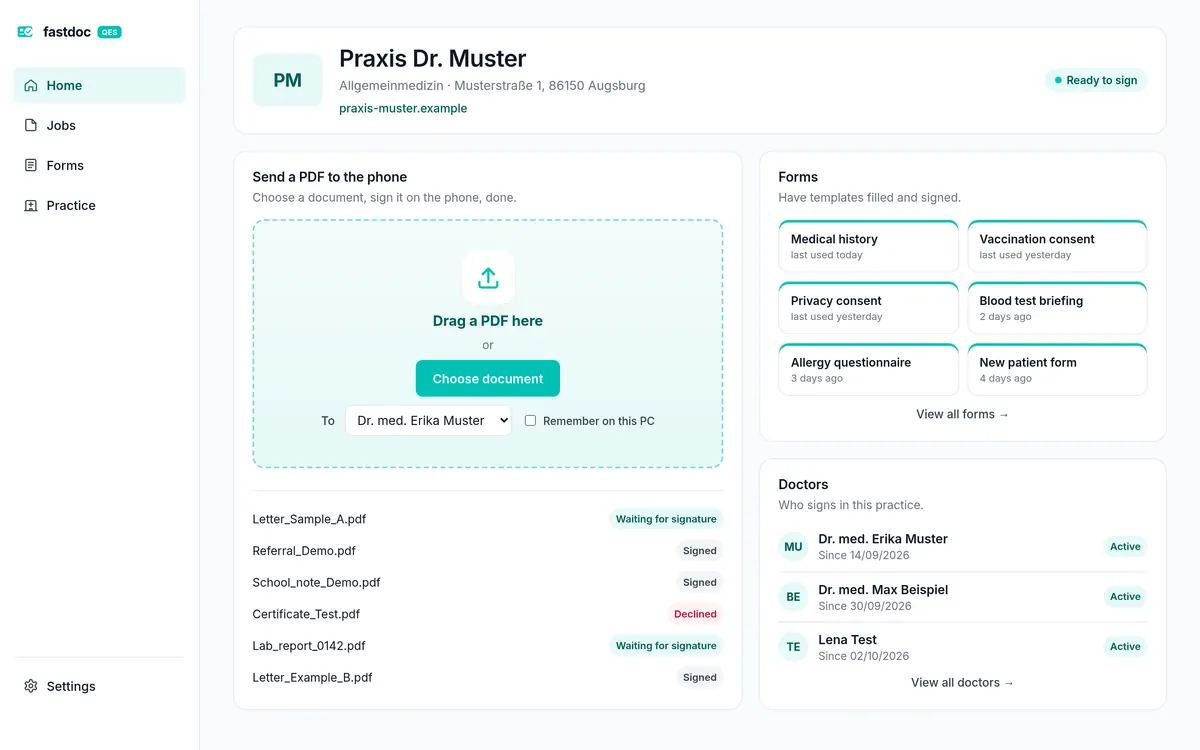
Practice bridge
Start page of the practice bridge with practice details, PDF drop area, forms and doctors (sample data)
Start pageYour practice, whether everything is ready, the documents sent last, your forms and the connected doctors. Drop PDFs right here.
Practice bridge
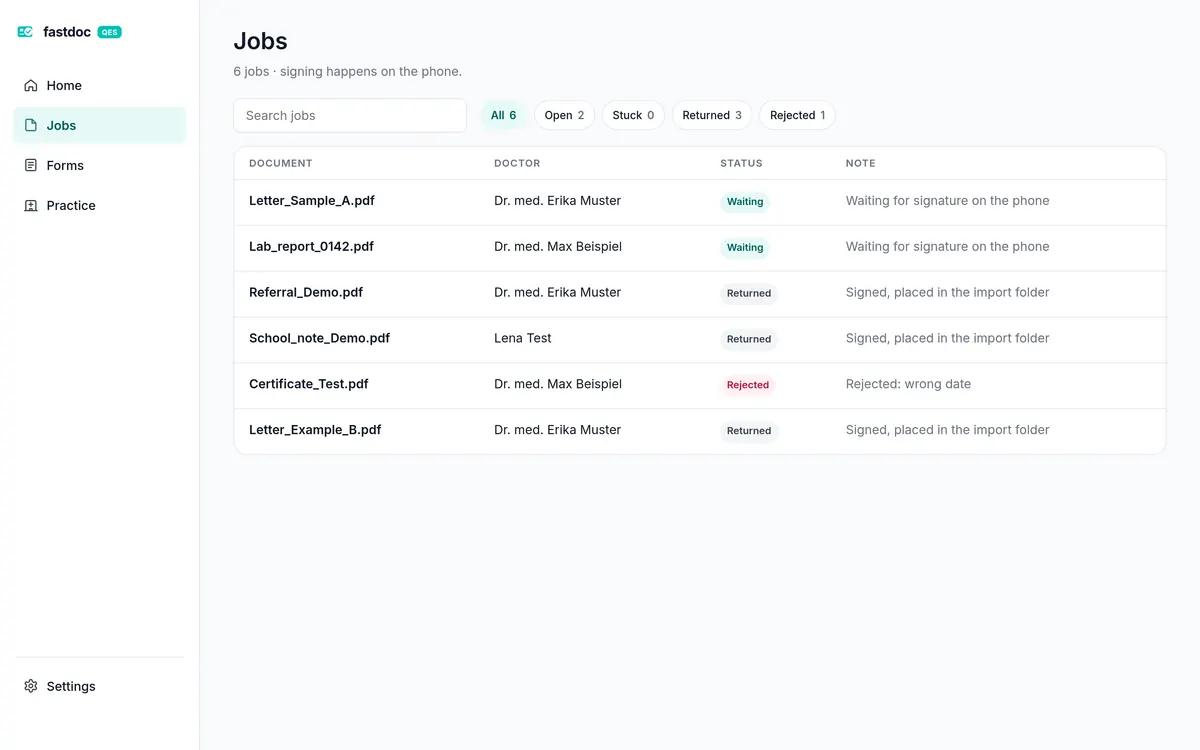
Job list of the practice bridge with the status of each document (sample data)
JobsEvery document with doctor and status: waiting, signed, rejected. With search and filters.
Practice bridge
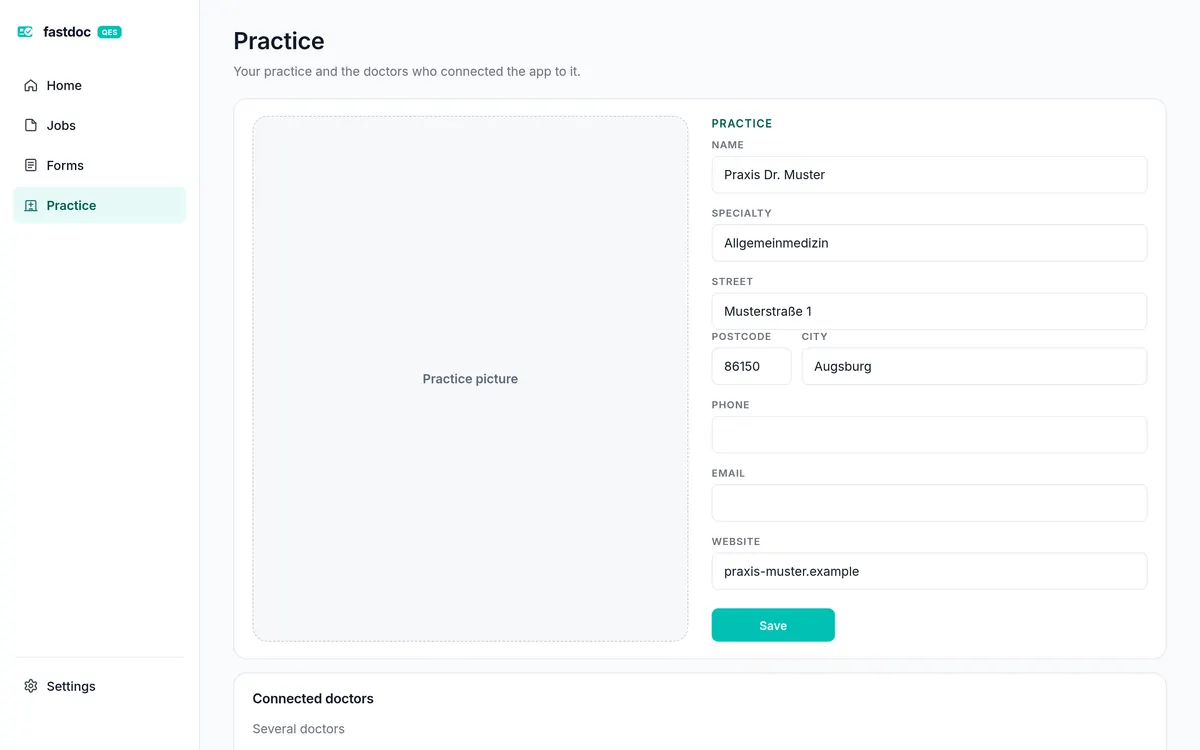
Practice page of the practice bridge with practice details (sample data)
PracticeName, specialty, address, website and logo in one place. Below, the doctors who connected the app.

Pictures show made-up sample data.

Inbox per practice
Open and completed jobs, filtered by document type.
Batch signing
Select several documents, enter the PIN once, hold the card once.
Back to the PMS
Signed documents are returned to the system automatically.
PDFs straight to the phone
No practice system needed: drop a PDF on the start page or choose one, pick the doctor, done. The signed PDF comes back to the computer.
Several doctors, one PC
Each doctor pairs their own phone. Jobs go to the doctor they are meant for, direct sending included.
Sealed on the way
The bridge encrypts the PDF and its file name for the doctor’s phone before they leave the practice computer.
Jobs from the practice

Two ways.

Documents outside the telematics infrastructure are signed today through the practice bridge. eAU, e-prescriptions and other telematics jobs are an approval, and that starts when your PMS vendor connects.

Closed beta testing
Sign through the practice bridge
The bridge connects to the practice folder via GDT. Letters, findings and other PDFs outside the telematics infrastructure then reach the phone. Signing is done with PIN and card. The signed file goes back to the practice.
In progress
Approve TI jobs with comfort signature
This app does not sign eAU, e-prescriptions or other telematics jobs. You approve them. The practice system signs them with the comfort signature on the connector. That starts when a PMS vendor connects to us. We are working on it.

Are you a PMS vendor? Bring the QES into your software.

Closed beta

Try the practice bridge.

The bridge is in closed beta. Write to us, and we will approve your practice and send you the download for Mac or Windows.

Join the beta